

If WordPress says its loopback request failed, record the exact Site Health message and ask your host to trace a request from the server back to the site’s own WordPress URL. A homepage that loads in your browser only proves your browser can reach it. The server can encounter different DNS, firewall or authentication rules on its way to the same site.
Understand the test · Read the error · Isolate the cause · Verify the repair
What a failed WordPress loopback request tells you
Go to Tools → Site Health and open the loopback result. Copy the exact message and note the time, timezone and whether this is production or staging. Core’s loopback test sends a POST to the site’s own wp-cron.php endpoint. It is designed to check the request without running the scheduled jobs. A healthy result therefore confirms that the test got its expected response. Check the actual scheduled task separately if it is still late.
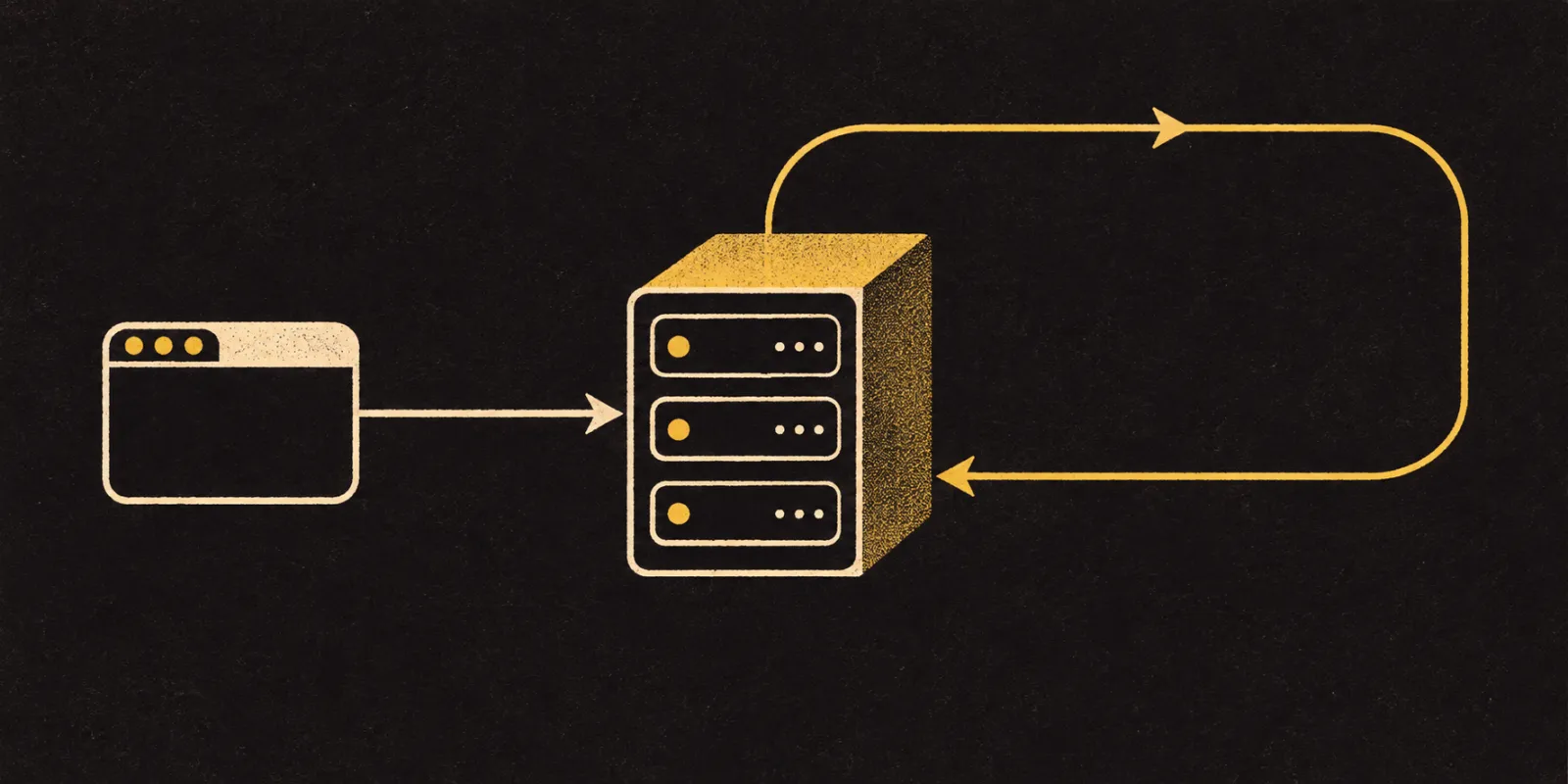
WordPress uses loopbacks for several operations, including its ordinary WP-Cron trigger and safety checks in the built-in code editors. If your host uses a separate scheduler, confirm how that scheduler invokes WordPress. The WordPress loopbacks handbook explains the core uses and common causes.
Use the error to choose the first check
A name resolution error points to the server’s view of DNS. Ask the host what the WordPress hostname resolved to at the time, including IPv6 if it is configured, and whether that destination accepts connections from the hosting network. After a migration, compare the hostname and path used by WordPress with the intended deployment. A server may still resolve a name to an old destination while your laptop reaches the new one.
A connection timeout can occur before any HTTP response. Ask the host to distinguish a connection that never opened from a request that arrived but waited for a worker or upstream service. Check the corresponding access and error logs before increasing a timeout. If the host sees a 502 response, use the 502 request tracing guide to follow the upstream connection.
A 401 or 403 points to an authentication challenge or an access decision worth tracing. For example, a staging site may allow your signed-in browser through an access gateway but challenge the server’s own request. Core can forward Basic Auth when the credentials are present in the server variables it reads. Other access mechanisms may require a host-approved solution. Ask which rule acted on the POST, which hostname was reached and whether a redirect sent it to a different sign-in screen. Keep staging protections in place while investigating.

Separate hosting rules from plugin behaviour
Send the host the Site Health message, timestamp, hostname and target path. Ask them to reproduce the request from the WordPress runtime or equivalent network context and correlate it with the web server, security gateway and PHP logs. A successful test from an external monitoring service is a useful comparison, but it cannot test the same route. Keep cookies, authorisation headers and staging passwords out of the ticket.
If the host can reach the endpoint and the WordPress test still fails, look for application differences. A security plugin can treat a self-request differently from a normal visitor request. A forced redirect may send a POST somewhere unexpected. On a protected staging copy, reproduce the same symptom and change one variable at a time using a controlled plugin conflict test. If staging never exhibits the production error, compare environment settings before drawing a conclusion from the test.
Verify the request and the feature it affected
Repeat Site Health after one scoped correction. Compare the result with the original and verify the actual affected workflow. If a post missed its scheduled time, use a harmless test post on staging and check whether it becomes public when expected. On a store, avoid manually rerunning an action that might repeat an email, payment-related step or external request. Verify the task’s records and downstream outcome first.
If the loopback is healthy and only publishing remains late, continue with the missed schedule guide. If the server still cannot reach its own WordPress endpoint, contact DriftFix with the redacted Site Health result, the affected feature and any recent hosting, plugin or access changes.