
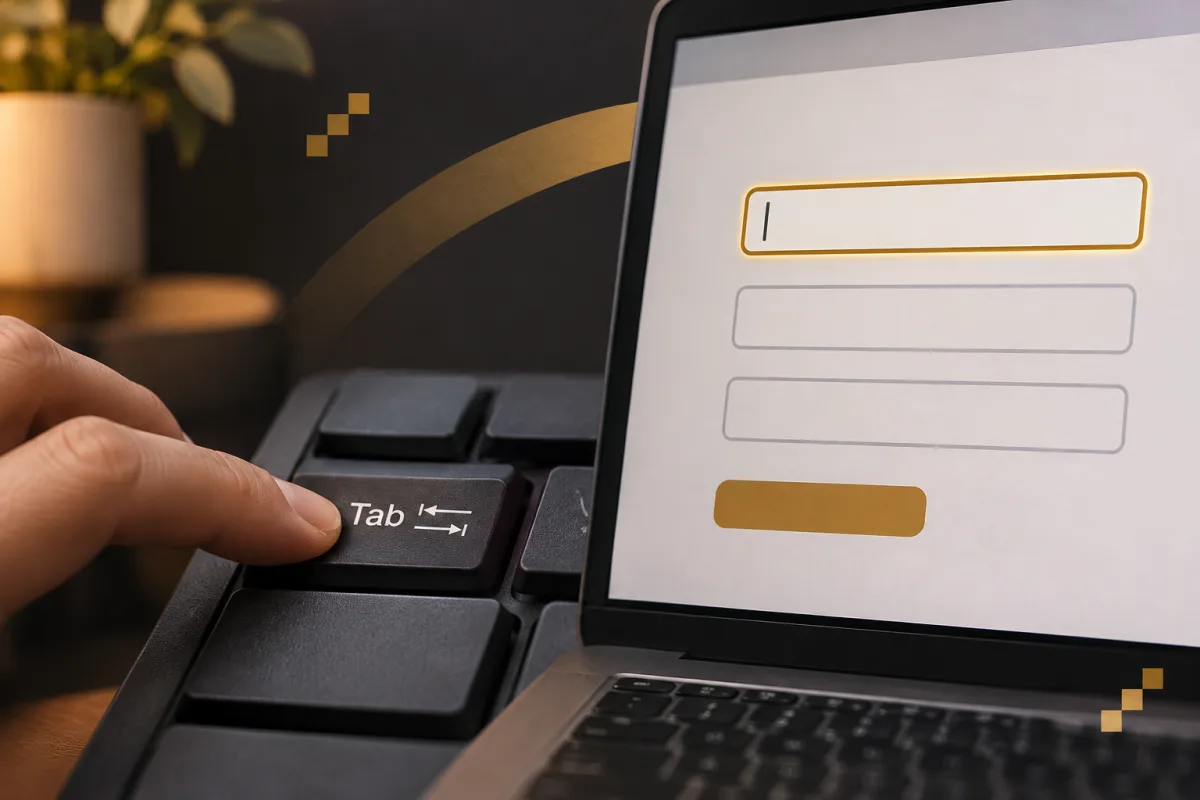
A WordPress keyboard accessibility test starts with one real task. Open your enquiry page, put the mouse aside and try to complete the form using Tab, Shift+Tab and the available controls. Watch where focus goes, whether you can see it, and what happens if you make a mistake.
Jump to Start with an enquiry · Follow the focus · Check overlays · Recover from an error.
Start your WordPress keyboard accessibility test with an enquiry
Pick a task a customer needs to finish, such as opening the contact page from the main menu and requesting a quote. Use a private window so the WordPress admin toolbar and saved form values do not change the experience. Run submission tests on a WordPress staging site with test data and outbound notifications routed safely. Follow the WordPress contact form test to check whether the enquiry reaches the intended inbox.
Press Tab from the top of the page and note the first thing that receives focus. If the site has a skip link, activate it and check that subsequent Tab presses continue in the main content. Then try the route through the navigation as well. Follow links with Enter, use Space to toggle a standard checkbox and use Shift+Tab to go backwards. Custom widgets may also need arrow keys or Escape. The W3C accessibility Easy Checks explain how to start a manual keyboard pass.
Follow the focus from one control to the next
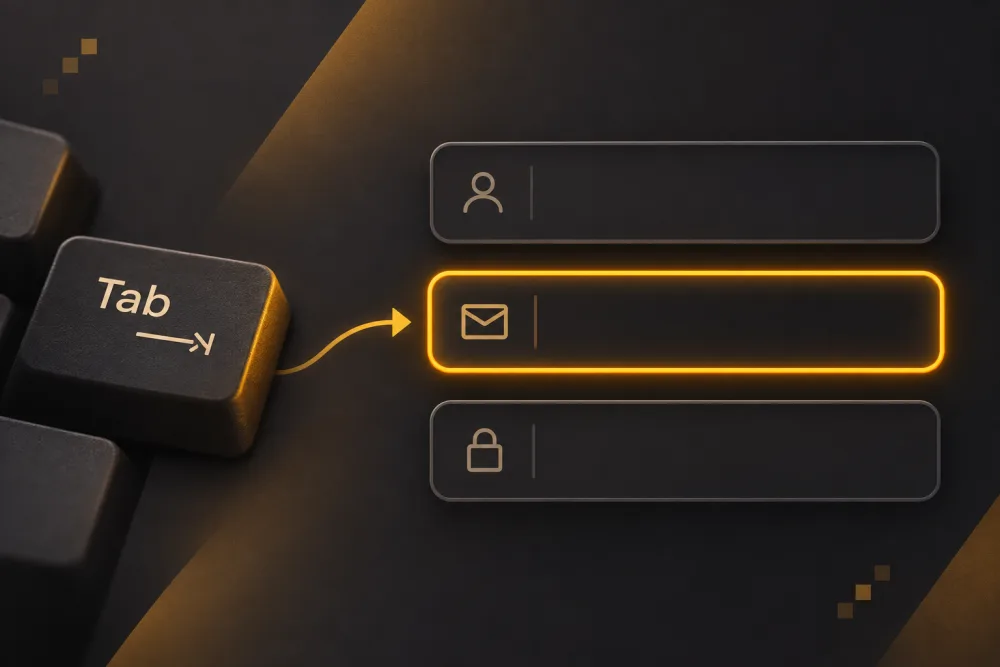
In a quote form, a sensible sequence might be Name, Email, Project details, consent if required, and Send. Compare the actual sequence with the way the form reads. If focus jumps from Email to Send and then back to Project details, repeat at a narrow width before filing the issue. A responsive layout can move fields visually while the keyboard still follows the original document order.
At each stop, look for a visible border, outline or another clear indicator. Pay particular attention to styled links, checkboxes and custom buttons. An indicator can be easy to see on a light background and disappear over a dark section. Keep the browser’s default where it works, and test any custom focus styles against each background where the control appears. See WCAG 2.2 guidance on visible focus.
Check sticky bars, banners and floating widgets
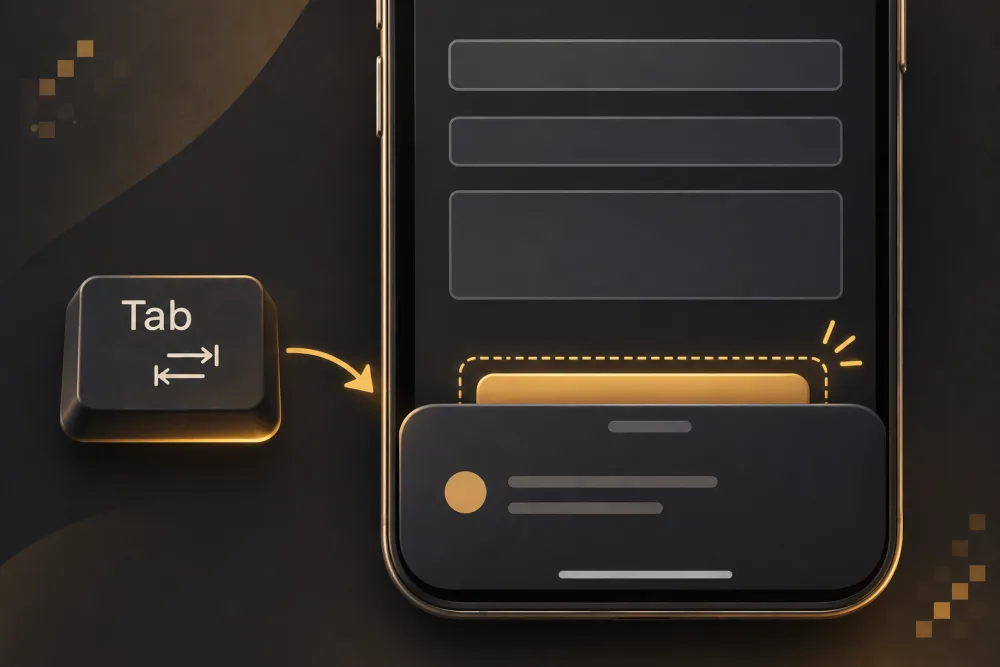
Run the same path with the site’s normal cookie banner, sticky header, or floating chat control present. Make the window narrower and use the keyboard to move forward and backward through the form. A sticky bottom bar can cover the focused Send button just as the browser scrolls it into view. Record the width, which overlay was open, and the previous control you tabbed from.
WCAG 2.2 Level AA requires that author-created content leave the focused component at least partly visible. Aim to keep the whole control and its focus indicator in view. Depending on the layout, a fix can involve reserving space around a sticky bar, changing where it appears, or adjusting scroll padding. Retest with the bar in place. See WCAG guidance on focus obscured by other content. If the indicator is in view but hard to see, check its contrast against adjacent colours.
For the same journey on a touchscreen, check mobile tap targets in WordPress to see whether neighbouring buttons are easy to tap without hitting the wrong one.
Check that you can recover from a mistake
On staging, submit with a missing required field and then with an invalid email address. Check whether you can find the message and its field, correct the value and submit again with the keyboard. An error summary should make the next step clear, and useful text should identify the problem at the field. If a modal opens, verify that you can reach its controls, close it with the keyboard, and return to a sensible point on the page.
Write each finding as a short reproduction sequence. For example, “At 380 px wide, tab from Project details to Send while the enquiry bar is visible. The bar covers the button.” Include the URL and expected behaviour. Pair this check with the WordPress heading structure guide when reviewing the rest of the page. A keyboard pass covers one part of accessibility. If an important form or navigation path keeps trapping focus or hiding controls, send DriftFix the affected URL and steps.