

A WordPress redirect loop happens when a page keeps sending the browser to another URL without reaching a usable destination. The safest fix is to record the redirect chain, identify the setting that sends visitors back, and change that specific rule. Reinstalling WordPress or clearing every cache before collecting evidence can make the cause harder to find.
This guide is for site owners and agencies facing ERR_TOO_MANY_REDIRECTS after a migration, HTTPS change or plugin configuration update. Start with observation. Keep access to your hosting account and a recoverable backup before editing URLs, server rules or security settings.
Jump to: Scope · Redirect chain · Site addresses · HTTPS and proxy · Conflicting rules · Controlled test · Verification.
1. Establish where the WordPress redirect loop occurs
Write down the exact affected URL and the last known working time. Check whether the homepage, one landing page, login or the entire site is affected. Ask what changed immediately beforehand: hosting, a domain, a certificate, CDN settings, a redirect plugin or a membership rule.
Try a private browser window and another device. If only an existing browser session fails, local cookies or a cached redirect may be involved. If several devices fail on the same URL, treat it as a shared configuration problem until evidence says otherwise. A private window is a comparison test; it does not repair the website.
For an agency, a useful incident note is: “Public homepage works; login loops after the HTTPS change; reproduced in two browsers.” That is more actionable than “the site is broken”. Avoid testing repeated purchases or resetting customer accounts while you are still identifying the affected routes.
2. Record each redirect before changing anything
Open the browser developer tools, select Network and enable Preserve log before loading the problem page. Look at the document requests, their response status and the Location response header. Chrome’s Network documentation explains how to inspect a request’s Headers tab. Keep a small record of the URLs in their actual order.
A hypothetical chain might go from https://example.com/account to https://www.example.com/account, then return to the first address. That points you towards competing hostname rules. Another chain might alternate between HTTP and HTTPS. If the same HTTPS address redirects to itself, inspect what the origin thinks the incoming scheme is. These patterns are clues, not proof of which plugin or server setting is responsible.
Capture the status and destination for each hop rather than only the browser’s final error. Ask the host to help trace the chain if you cannot interpret it. Remove session tokens, cookies and private query parameters before sharing screenshots or logs. Do not post an unredacted network export in a public support forum.
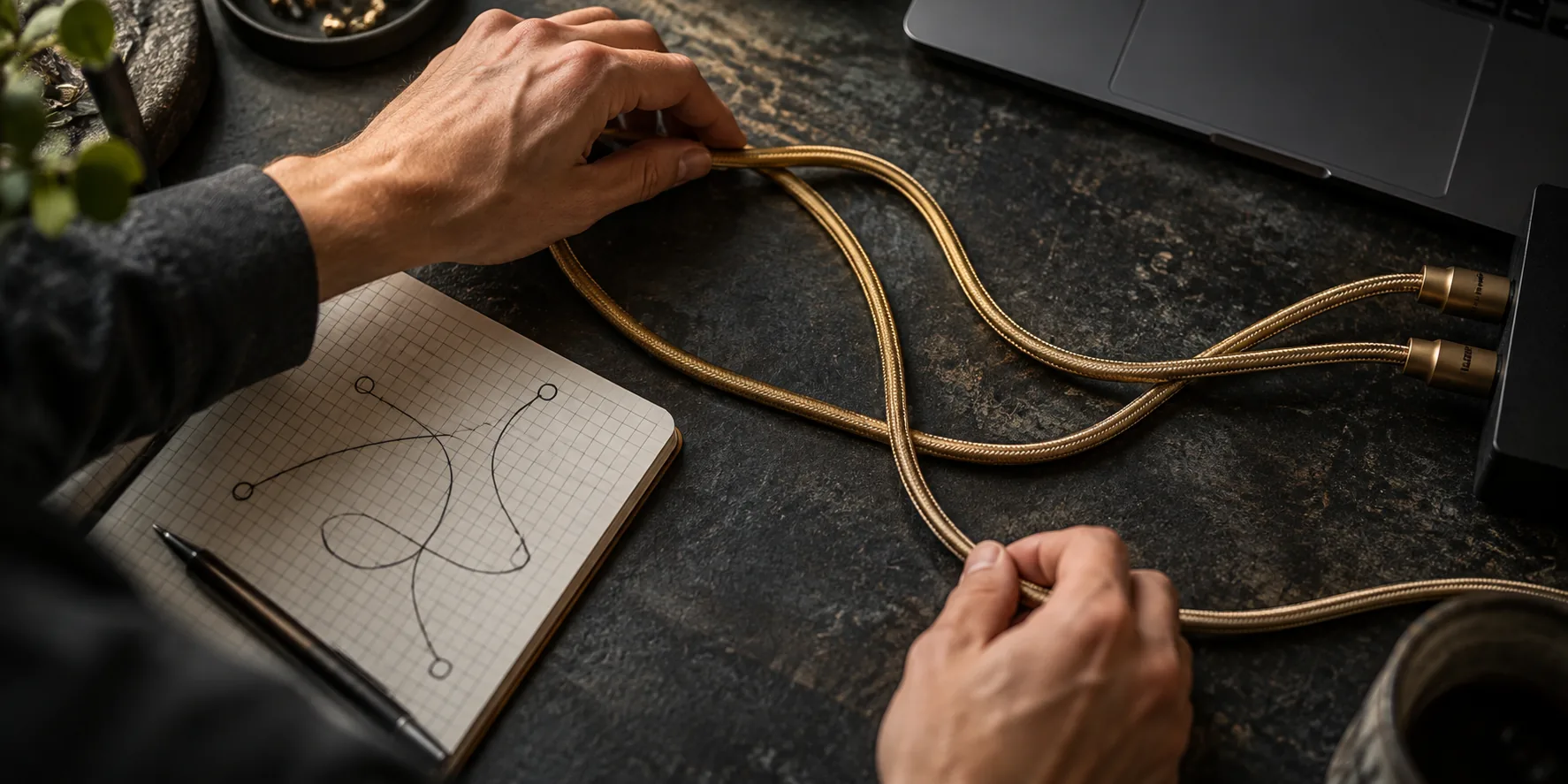
This original conceptual image represents tracing a request path; it is not a screenshot or a client incident.
3. Check the public URL and WordPress installation address
In Settings → General, review WordPress Address and Site Address. The public address and the location of WordPress core files can legitimately differ when WordPress is installed in a subdirectory. Do not force them to match without checking the installation layout.
Compare the intended scheme, hostname and path with the redirect chain. Inspect any WP_HOME or WP_SITEURL overrides in wp-config.php with your developer. Those overrides can make the settings uneditable in the dashboard. WordPress’s migration documentation describes both addresses and the consequences of hard-coded values.
Before changing either field, confirm the correct destination with the hosting configuration and keep a recovery route outside WordPress. A guessed URL can lock you out. Multisite and subdirectory installations need specific handling. If the loop began during a move, use our WordPress migration checklist to review the wider handover as well.
4. Align HTTPS handling across the CDN and origin
A CDN or reverse proxy sits between the visitor and the hosting server. The browser can use HTTPS while the connection reaching the origin uses a different scheme. Check both parts of the connection rather than assuming the browser address tells the whole story.
For Cloudflare users, Flexible mode sends HTTP to the origin. If that origin insists on redirecting HTTP to HTTPS, a loop can result. Full or Full (strict) can also conflict with an origin that redirects HTTPS back to HTTP. See Cloudflare’s redirect-loop troubleshooting for the relevant patterns.
Have the host confirm the origin certificate and HTTPS availability before choosing the appropriate encryption mode. Full (strict) adds origin certificate checks. Keep the intended secure configuration; do not treat disabling HTTPS or certificate validation as a finished repair.
WordPress also needs to recognise HTTPS correctly behind a trusted proxy. Its HTTPS administration guide explains forwarded-protocol handling. Ask your host or developer to validate that configuration for your topology. Do not paste a proxy snippet without knowing which systems set and trust the header.
5. Find the rule that reverses an earlier decision
Review redirects in the hosting panel, web-server configuration, CDN and WordPress plugins. Include custom code, login redirects and language or membership features when the affected route makes them relevant. Export or photograph the current rules before changing them.
For a hostname loop, look for one layer sending the bare domain to www while another sends www back. For a path loop, look for an old URL pointing to a new URL whose rule points back to the old one. Use the chain you recorded to narrow the review; a site-wide cleanup is unnecessary for a single conflicting route.
WordPress has its own canonical redirect behaviour for normalising public URLs. Removing it globally can conceal a conflict and affect other pages. First identify the contradictory destination in your own configuration.

The doorways are a visual metaphor for competing destinations, not a technical screenshot.
6. Test one targeted change with a rollback
Where possible, reproduce the issue on an isolated copy. Keep that copy from sending live customer notifications or performing real payments. A staging copy must reproduce the relevant proxy and hostname conditions for its result to be meaningful; a different network setup may hide the fault.
Record one proposed change, the reason for it and how to undo it. For example: disable the specific redirect rule that sends the preferred hostname back to its alias, then trace the same URL again. A clear before-and-after chain is stronger evidence than simply seeing a page load once.
If a plugin setting is suspected, test that setting first. Broadly disabling security, payment or membership plugins on a live store can disrupt users and obscure the original fault. Coordinate disruptive tests with the site owner. Keep the last working configuration available, and stop if the experiment affects unrelated routes.
Check backup recoverability before undertaking configuration changes with wider consequences. Our backup restore test guide explains how to establish a usable recovery path.
If the redirect is fixed but visitors still see an older version of the page, use our guide to WordPress changes not showing to check the browser, page cache, CDN and design assets.
7. Confirm the repair across real user journeys
After fixing the cause, clear the relevant cached responses and repeat the original test. Check the intended HTTPS homepage, an inner page, login and any account route involved. Test both www and non-www entry points where your domain supports them, confirming that they reach the chosen destination rather than return to a previous address.
On WooCommerce, also check the cart, checkout and customer account flow using an appropriate test process. Confirm you have not introduced unexpected redirects into a form submission or payment return. A successful homepage alone does not establish that the original business journey works.
Keep the corrected rule, final chain, test time and rollback location in the handover. Monitor the previously affected route after caches expire. If the WordPress redirect loop returns, compare the new chain with your record before making another change.
If the redirect chain ends at a missing page rather than repeating, use our WordPress 404 errors guide to check whether the content moved, the route is broken or the address should remain unavailable.
Common questions about redirect loops
Will clearing cookies fix every redirect loop?
No. It can help distinguish a local session problem, but it cannot resolve conflicting server, CDN or WordPress rules. If the error reproduces in a fresh session on another device, investigate the shared configuration.
Should I reinstall WordPress?
Start with the chain and recent changes. Reinstallation does not necessarily change a contradictory CDN or hosting redirect, and it adds work before you know the cause.
What should I send to a developer?
Send the affected URL, when it last worked, the latest relevant change, a redacted redirect chain and the routes that still work. Share access securely when requested; keep credentials out of the incident note.
Need help finding the conflicting redirect?
DriftFix helps businesses and agency partners investigate WordPress configuration problems and plan controlled fixes. Start with the affected URL and a brief description of what changed through DriftFix’s enquiry form. We can help narrow the fault without guessing which part of the stack is responsible.