
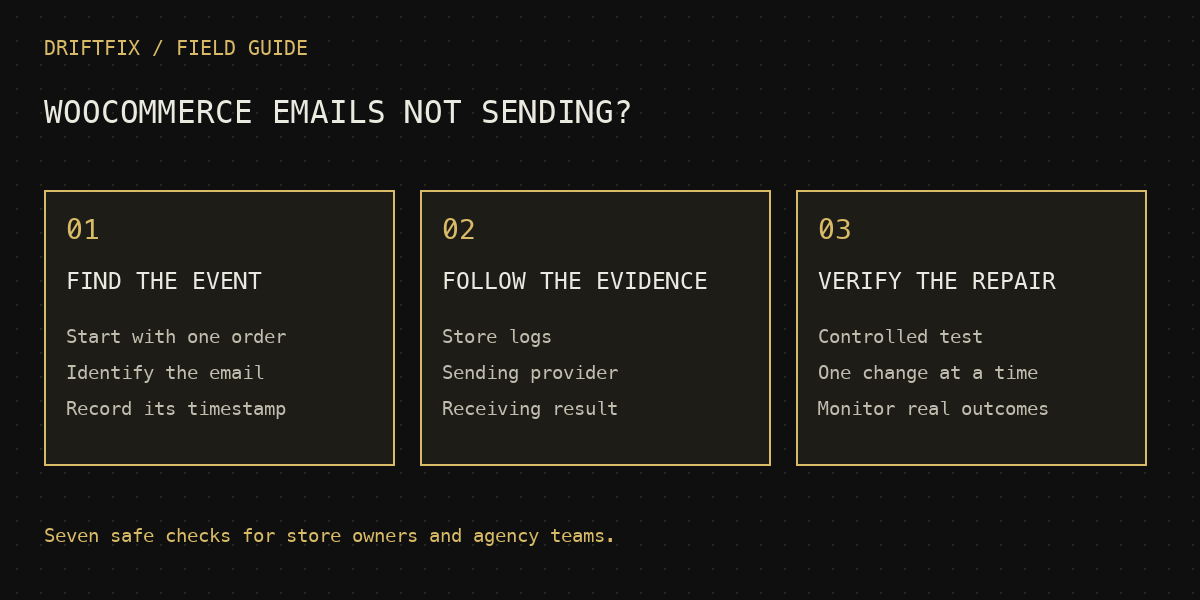
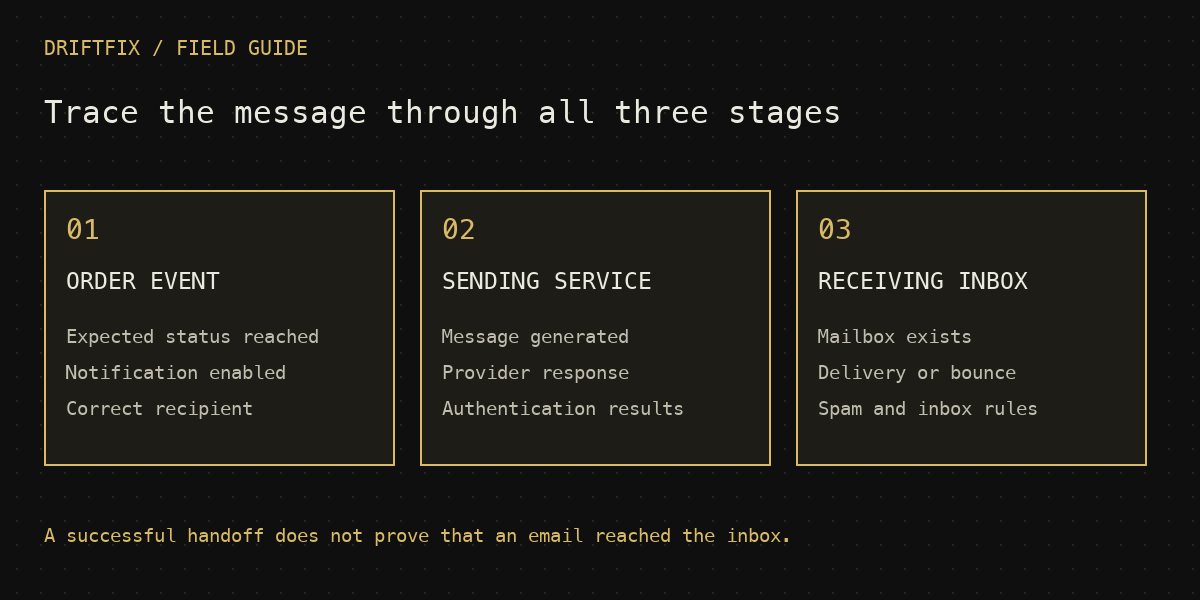
WooCommerce emails not sending? First establish whether the store generated the message, whether its mail service accepted it, and whether the recipient received it. An order that has not reached the expected status needs a different investigation from an email accepted by a provider but placed in spam.
This guide gives store owners and agency teams seven safe checks for missing order notifications. Start with one affected order and one email type. Keep timestamps and references together so you can trace the same event through the store and its sending service.
Jump to: Scope · Order status · Settings · Logs · Mail service · Authentication · Retesting.
1. Narrow down which WooCommerce emails are not sending
Write down the notification that is missing: a store manager’s new-order alert, a customer’s processing-order message, a completed-order message, or another notification. Record the affected order number, recipient and time. Do not assume every email type uses the same recipient or trigger.
Compare a controlled test with an affected real event. Does the problem affect one mailbox, one payment method, or every notification? Check the recipient’s spam folder and mailbox rules, but do not stop investigating just because one test arrived.
A useful starting record is: “Order 123 reached this status at this time; this enabled notification was expected; the recipient reports no message.” Avoid collecting unnecessary customer data. Sanitise screenshots and references before sharing them with a developer.
2. Check the order event before changing email delivery
Open the order and review its status and notes. A customer abandoning payment is different from a successful payment whose confirmation never updated the order. Reconcile the provider’s transaction record before changing statuses or asking the customer to pay again.
WooCommerce’s email troubleshooting guide explains that pending-payment orders and errors preventing a status change can stop expected notifications. If payment succeeded but the order did not update, investigate the gateway’s confirmation process as well as email delivery.
Our WooCommerce checkout troubleshooting guide covers that payment-versus-confirmation distinction. Do not manually mark an order paid solely to produce an email. First establish the transaction’s actual outcome and follow the store’s fulfilment process.
If the email arrives but its download links are missing or fail, follow our WooCommerce downloads not working checks to separate product access, permissions and file delivery from mail transport.
3. Verify the notification and its recipient settings
Go to WooCommerce → Settings → Emails and open the notification you are investigating. Check that it is enabled where that control applies. Review the intended recipient and make sure the address is correct. A typo or old manager address can make a working notification appear broken.
Customer notifications and manager alerts are not configured identically. WooCommerce’s email settings documentation explains which notifications expose recipient controls. Check the specific message rather than changing every notification in the list.
A template preview or preview email checks presentation and a sending path; it does not establish that a real order triggered the correct message. When WooCommerce emails are not sending after a settings change, compare the notification’s configuration with the last known working setup before testing the order event again.
4. Follow the email attempt through the logs
Check WooCommerce → Status → Logs for the relevant order time. Current WooCommerce documentation describes the transactional-emails log source. Availability and interface details depend on the installed version, so consult its documentation if that source is absent.
WooCommerce’s transactional logging explanation distinguishes successful handoff, failed attempts, disabled notifications and skipped messages. These outcomes help identify which part of the chain needs attention. A successful handoff is not a delivery receipt from the customer’s mailbox.
Correlate the entry with the provider’s logs using the timestamp, message reference or order reference. If no relevant attempt exists, return to the trigger and settings. Check logging configuration and retention before concluding that no entry means no attempt. WordPress password-reset emails may need separate mail-service evidence.
If the relevant extension queues its notifications and those background jobs are failing, use our WooCommerce failed scheduled actions checks to inspect the action log and distinguish a backlog from an individual job failure.
For login recovery rather than an order notification, follow our WordPress password reset email checks to verify the account, trace the request and distinguish missing messages from expired links.
5. Check the WordPress mail service and provider response
Identify how the site sends mail: the host’s default mail setup, an SMTP connection or a supported provider integration. Check which configuration is actually active. Installing a mail plugin does not by itself prove that order notifications use a working, authenticated service.
The WordPress wp_mail() reference states that a successful return value does not establish that the recipient received the email. Follow the provider response further: was the message accepted, deferred, rejected or bounced?
WordPress’s mail administration guidance also describes hosting and sender configuration considerations. Ask the host or provider about a concrete rejection, rather than changing credentials and connection settings at random. Keep passwords and API keys out of fault reports and public screenshots.
If notifications stopped after a hosting move, use our WordPress migration checklist to review the destination, DNS records and post-move customer journeys before changing the mail setup.
6. Verify the real sender and domain authentication
Use a sender identity authorised by the mail service. A store sending as a personal Gmail address through an unrelated web server can create authentication problems. This is different from sending through a properly authorised provider account.
WooCommerce’s sender authentication guidance covers SPF, DKIM and DMARC and recommends a branded sending domain. Follow the actual provider’s setup instructions; do not add duplicate DNS records or tighten a domain-wide policy without checking other legitimate senders.
If messages are accepted but missing from the inbox, inspect available delivery events and authentication results. Authentication helps establish sender legitimacy, but it cannot guarantee inbox placement. Content, reputation and recipient filtering can still affect delivery. Likewise, a hard bounce reporting an invalid address is not repaired by rewriting the subject line.
7. Retest the complete notification journey safely
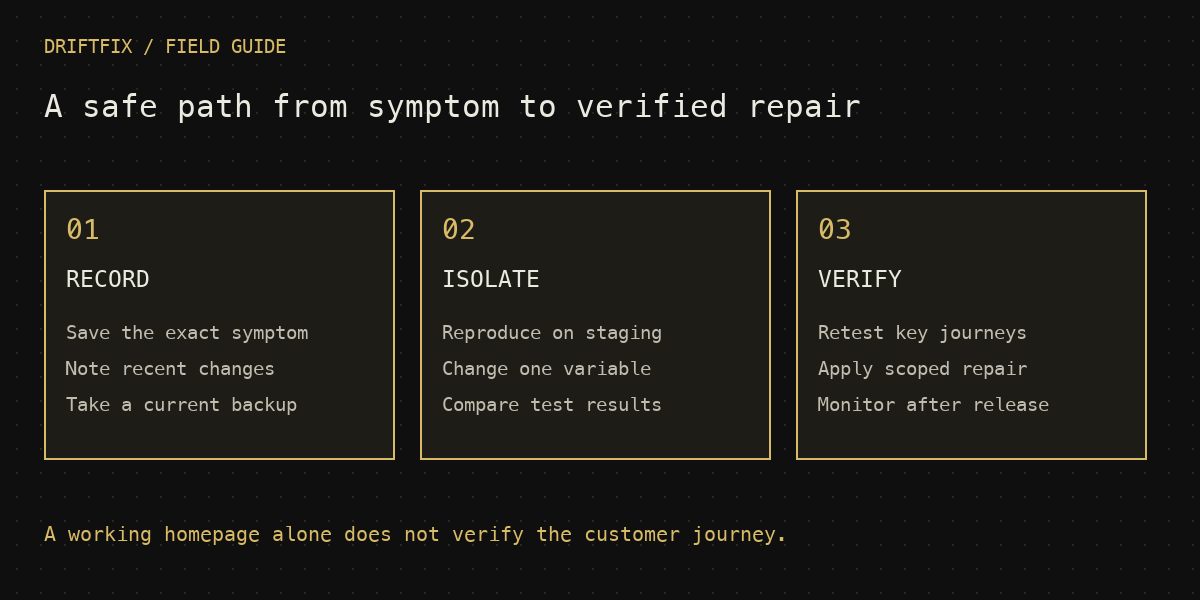
When WooCommerce emails are not sending reliably, verify the repair with a controlled order event as well as a provider test message. Use staging and the gateway’s documented test environment for disruptive tests. Prevent staging from emailing real customers unintentionally.
Record the expected order transition, notification type, sending attempt and receiving result. Compare a manager alert with the relevant customer notification. Test more than one receiving provider where practical, and check links and message content as well as delivery.
Change one variable at a time during conflict testing. If a template override or custom extension is implicated, reproduce the issue on staging and apply a scoped supported repair. Do not disable live payment or shipping extensions while customers are checking out simply to test a theory.
Resending an order message can confuse a customer if the original eventually arrives. Agree what should be resent and why, and check whether the notification changes fulfilment expectations. Monitor subsequent real outcomes after deployment; one successful test does not prove that every notification path works.
Common questions about WooCommerce emails not sending
Does a “sent” log entry prove inbox delivery?
No. It may establish handoff to the next sending stage. Inspect the provider’s later response and receiving result before calling the problem resolved.
Should I immediately buy an SMTP plugin?
First establish whether the notification was generated and which mail service is active. A supported provider integration can help with transport, but it will not repair a missing order event or a disabled notification by itself.
What evidence should an agency send a developer?
Provide the affected notification, order reference, timestamp and timezone, expected status, recent changes and sanitised log references. Include the current sending provider and versions. Arrange access separately through a secure channel.
Need help tracing a missing WooCommerce notification?
DriftFix provides WordPress troubleshooting and custom plugin development from George, South Africa, for businesses and agency partners working remotely.
Tell us which email is missing and what changed. We can discuss a focused investigation that follows the evidence from the order event to the receiving mailbox.
Researched against the linked official documentation on 4 October 2026. Menu labels and logging features can vary with installed versions.