
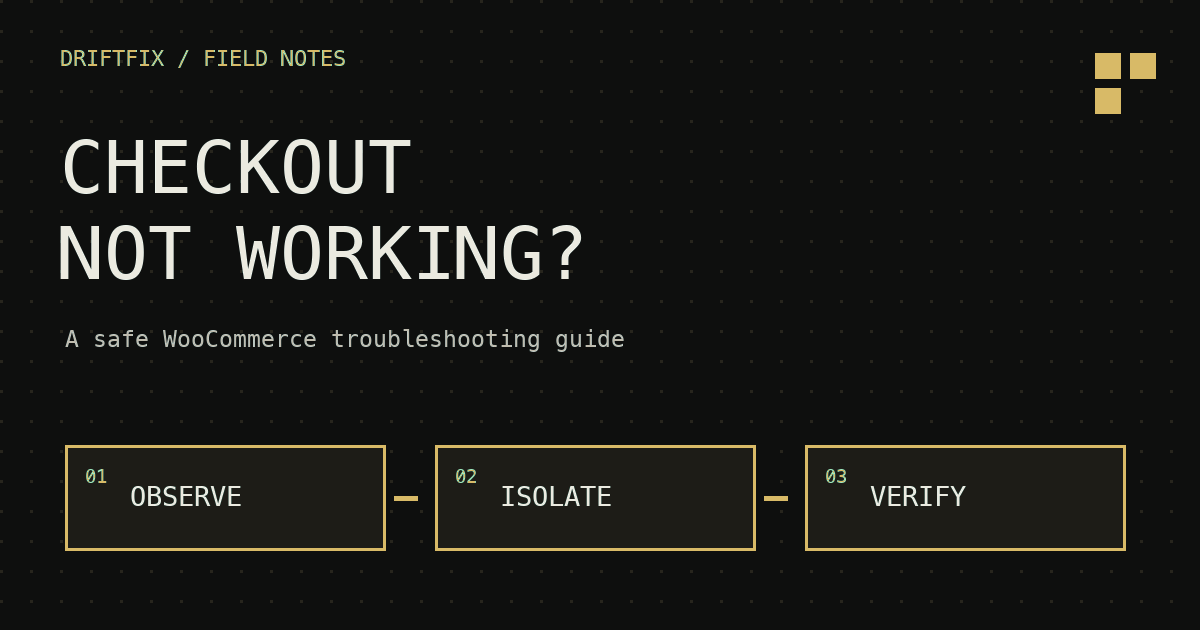
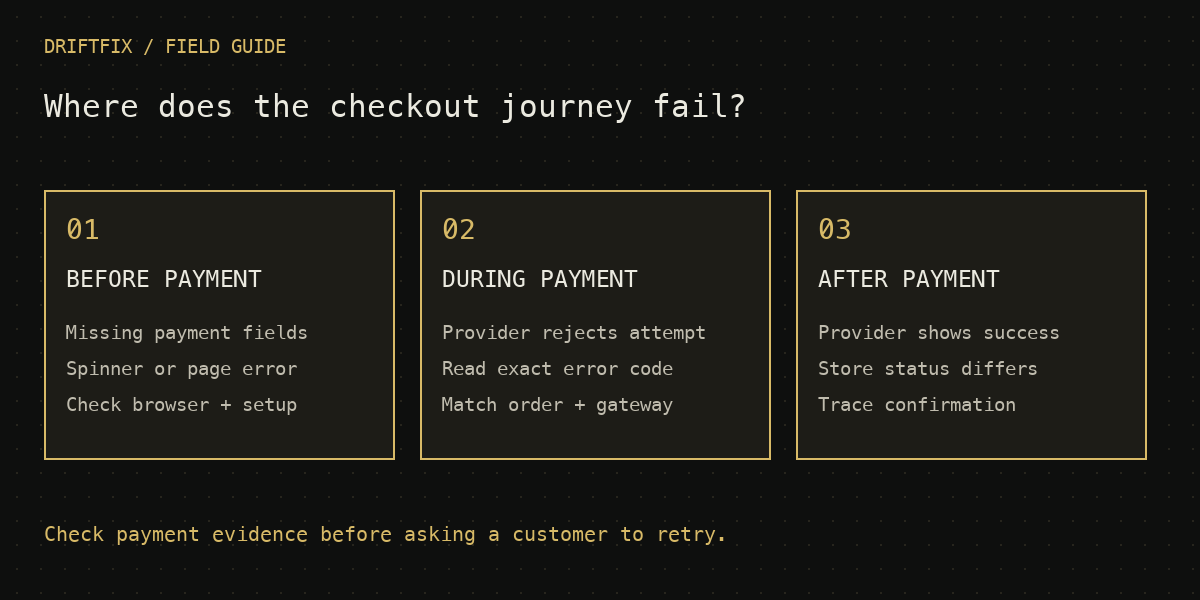
WooCommerce checkout not working? First establish whether the failure happens before payment, during payment, or after the customer has paid. Record the exact symptom, check the corresponding order and payment records, and reproduce the issue on staging before changing plugins or checkout settings. A loading spinner, a missing payment method and a paid order stuck on hold need different investigations.
This guide gives store owners and agency teams a practical sequence for narrowing down the cause. It covers both the block-based checkout and the classic shortcode checkout. You do not need to start by replacing your gateway or buying another optimisation plugin.
Jump to a check: Logs · Checkout type · Loading errors · Caching · Conflicts · Payment confirmation · Retesting
Before you change anything: protect orders and preserve evidence
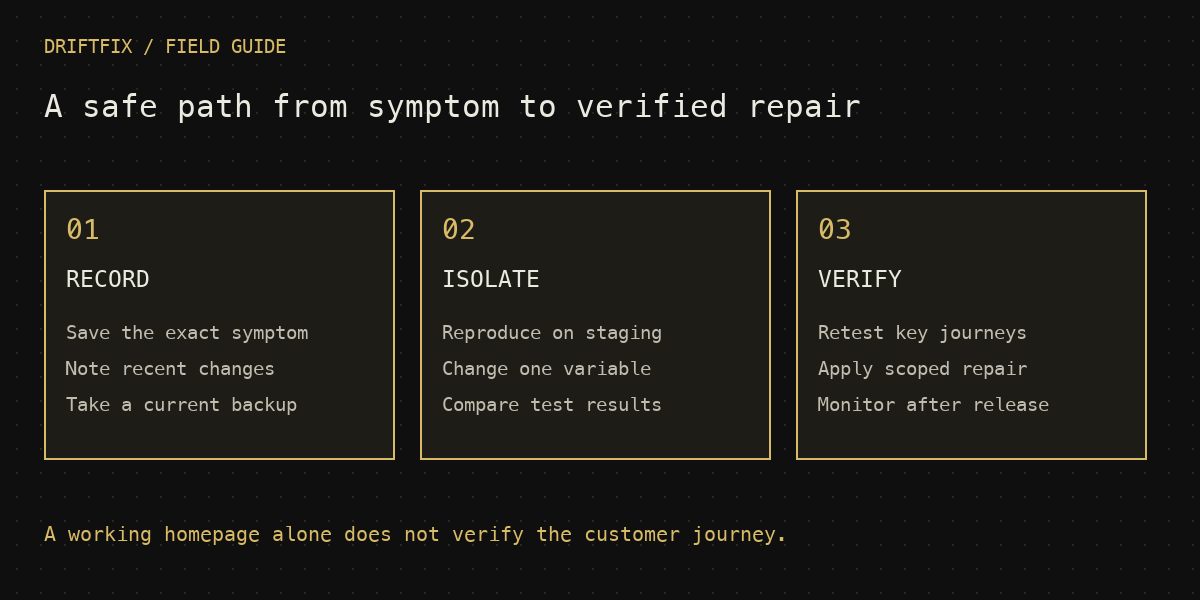
Write down when the problem began, the last successful order, and any recent deployment, update, hosting change or gateway configuration change. Save the customer-facing error text and the time it occurred. A screenshot is useful; full card details are not.
If a customer says they paid, check the payment provider’s transaction record before asking them to try again. A checkout error alone does not tell you whether money was taken. Keep the store order reference and the provider transaction reference together so that you can reconcile them.
Take a current backup and use a staging copy for disruptive tests. WordPress’s debugging guidance recommends a backup or staging environment before modifications. Protect customer data on that copy, prevent accidental customer emails, and use the gateway’s documented test environment where available.
WooCommerce checkout not working: match the symptom to the next check
The checkout spins endlessly or card fields never appear: investigate browser errors, blocked requests and script conflicts.
A payment method is missing: check whether it is enabled, eligible for the customer’s order, and compatible with the checkout type.
The gateway rejects payment: inspect the exact provider error and the matching order notes rather than assume a plugin conflict.
The provider shows payment but the store does not: investigate confirmation delivery and order status before retrying payment.
Only one customer group is affected: compare guest versus logged-in checkout, location, currency, device and product type.
These are starting points, not diagnoses. For example, a missing card form could be a compatibility problem or a blocked script. The aim is to find evidence that distinguishes the two.
1. Check order notes and gateway logs
Open the affected order in WooCommerce and read its notes alongside the payment provider’s transaction record. Look for a timestamp, payment method, error code and any status transition. WooCommerce’s payment troubleshooting documentation explains how notes and transaction logs help trace what happened.
When the gateway supports logging, its settings usually provide a logging option. WooCommerce logs are available under WooCommerce → Status → Logs; the exact gateway controls vary. Enable only the logging needed for the investigation and follow the provider’s retention guidance.
A useful support report says, for example, “Guest checkout failed at 10:42 UTC using this gateway, with this error code and order reference.” “Payments are broken” gives a developer much less to work with. Redact personal information and secrets before sharing a report.
2. Identify whether you use Checkout blocks or a shortcode
Edit the assigned checkout page and identify its content. The modern version uses the WooCommerce Checkout block. A classic implementation uses [woocommerce_checkout], sometimes through a theme or builder integration.
This distinction matters because an extension that works with the classic checkout may not support Checkout blocks. WooCommerce documents that an incompatible gateway can be absent from a block-based checkout. Check the exact gateway and checkout-extension versions against the vendor’s compatibility information.
Also verify that the intended checkout page is assigned in WooCommerce → Settings → Advanced. Do not change the checkout type on the live store as an experiment. Test any proposed change with shipping, coupons, required fields and payment methods first. See WooCommerce’s Cart and Checkout customisation guide and page-assignment documentation.
3. Investigate a loading spinner or unresponsive payment fields
Reproduce the symptom in a private browser window, then compare another browser or device. Note whether it affects everyone or a particular session. A clean test helps separate a persistent store problem from browser-specific behaviour.
A developer can inspect the browser console and network requests while reproducing the failure. A JavaScript exception, rejected request or unexpected server response provides a more useful lead than the spinner itself. Classic checkout order-review requests and block-based checkout requests differ, so do not assume every store uses the same endpoint.
WooCommerce has separate guidance for an endless checkout spinner and Stripe checkout fields that do not load. Follow the relevant guide for your implementation. Avoid pasting unfamiliar snippets into a live checkout simply because another store had a similar symptom.
4. Verify that caching respects the checkout session
Cart, Checkout and My Account contain customer-specific information. WooCommerce’s caching guidance says to exclude these pages from page caching. Many integrations already do this, but verify the actual setup, including hosting or CDN rules.
Clearing a cache is a useful test; it is not a durable fix if the same page is cached again incorrectly. Check exclusions against your real page URLs and your caching provider’s instructions. JavaScript delay, combination or optimisation settings also deserve a controlled test when payment fields stopped loading after an optimisation change.
Change one setting at a time and record the result. The question is not whether caching is “good” or “bad”; it is whether this configuration preserves a reliable, customer-specific checkout.
If the wider site also became sluggish after updates, follow our guide to diagnosing a WordPress site that slows down after plugin updates.
5. Isolate theme, extension and custom-code conflicts
If the failure began after an update, compare the changed component with the last known working setup. On staging, keep WooCommerce and the relevant gateway active, temporarily remove other extensions from the test, and restore them individually. WooCommerce recommends this approach in its conflict troubleshooting guidance.
Test custom checkout fields, pricing rules, installation options, popups and tracking integrations deliberately. Their involvement is a hypothesis until a repeatable test supports it. Keep notes of the exact versions and the steps that reproduce the fault.
Theme changes and plugin deactivation can affect a live store’s design and functionality. Run the isolation process away from production, then apply the smallest supported repair. Restoring an old full-site backup can overwrite new orders; recovery needs an order-aware plan.
6. Investigate payment confirmation separately from payment collection
An order’s status needs interpretation. “Processing” commonly means payment succeeded and fulfilment remains; it is not automatically a checkout failure. An offline bank-transfer order may remain on hold until payment is verified. Gateway behaviour also varies.
When the provider has a successful transaction but WooCommerce has not recorded the expected result, inspect the gateway’s confirmation mechanism, order notes and delivery logs. Depending on the integration, this may involve webhooks or other notifications. Check the provider’s instructions and whether a firewall or access restriction blocks the relevant request.
WooCommerce’s order troubleshooting guide covers status interpretation and payment evidence. Do not disable security protections wholesale or manually mark orders paid without reconciling the transaction.
If customers cannot select a delivery option, follow our WooCommerce shipping troubleshooting guide to check destination matching, method conditions and product data before investigating payment.
7. Retest the complete customer journey
A fix is not verified just because the checkout page loads. Build a small test matrix using the combinations your store actually supports: guest and account customers, important shipping regions, payment methods, coupons, and any special checkout route.
For each test, check the order, transaction result, confirmation page, totals and customer communication. Test rejected payments as well as successful ones where the gateway’s sandbox permits it. Confirm that a special route does not break the ordinary purchase path.
Use documented test payments on staging. If a live transaction is necessary, have the store owner agree to the amount and process first. After deployment, watch real order outcomes and support reports; a single successful test is not proof that every customer scenario works.
If the order completes but the expected notification is missing, follow our guide to WooCommerce emails not sending to trace the event, mail service and receiving inbox.
A real checkout example: EcoFire’s installation route
For EcoFire.co.za, Willem built a custom WooCommerce plugin that asks customers whether they need installation when they reach checkout. Customers who do not need installation continue through normal checkout. Those who do are sent through a separate form and process.
That example illustrates why checkout testing needs to reflect a store’s business rules. Both the normal purchase and the installation enquiry route matter. It is an example of custom functionality, not a claim that EcoFire had the faults described above or that this work produced a measured sales uplift.
If your store needs a similar conditional journey, explore DriftFix’s custom WordPress plugin development service rather than forcing a collection of unrelated extensions to handle the workflow.
Common questions about WooCommerce checkout problems
Should I disable all plugins on the live store?
Start with staging. A conflict test can be useful, but disabling live plugins may remove payment, shipping or other essential functions while customers are using the store.
Will switching to the classic checkout fix missing payment methods?
It might help if an extension does not support Checkout blocks, but it is not a universal repair. Confirm compatibility and test the full journey before deciding whether to change the checkout or the extension.
What should I send a developer?
Send the checkout URL, exact symptom, start time, recent changes, affected payment method and sanitised order or log references. Describe whether it affects guests, account customers or particular locations. Arrange credentials through a secure channel, not inside the fault report.
If products disappear before the customer reaches payment, use our WooCommerce empty-cart troubleshooting guide to compare session state, caching and the actual cart response.
If checkout refuses an apparently available item, use our WooCommerce stock-mismatch investigation guide before changing quantities.
Need help with a WooCommerce checkout that is not working?
DriftFix provides WordPress troubleshooting and custom plugin development from George, South Africa, for businesses and agency partners working remotely.
Tell us what happens at your checkout → Include the URL, error message and what changed before it failed. We can then discuss the investigation and agree a scope before work begins.
Researched against the linked WordPress and WooCommerce documentation on 3 October 2026. Menu labels and gateway behaviour can change; follow the documentation for your installed versions.