

A WordPress critical error means part of the site failed while running; the message alone does not identify the repair. Start by recording the affected URL and recent changes, checking the administrator’s recovery email and asking the host for the matching PHP error. Preserve a current backup before changing files or restoring an older database.
If the browser reports a 502 Bad Gateway response, use the WordPress 502 troubleshooting guide to trace the request from the gateway to the origin or PHP service.
This guide helps business owners and agency teams organise a recovery investigation. It covers seven safe checks, from defining the impact to verifying the repair. If a store accepts payments or bookings, coordinate the response with the people handling those transactions. Restoring a homepage is only one part of getting the business working again.
Jump to: Impact · Evidence · Recovery Mode · Logs · Isolation · Repair · Verification.
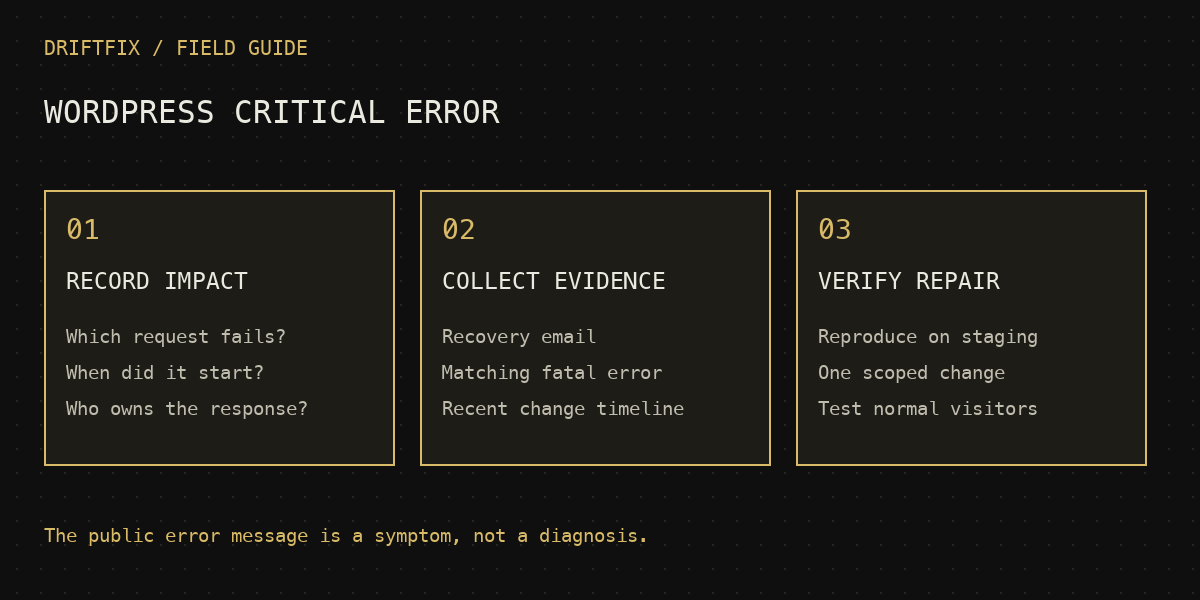
1. Define the impact of the WordPress critical error
Check whether the failure affects the entire site, the dashboard, one page or one action. Record the URL, approximate time and timezone, login state and what happened immediately before the message. A failure when saving a product is a different reproduction case from a failure on every public page.
For a shop, review the actual payment provider and order records before asking customers to retry payment. A visible error after a payment does not establish that the transaction failed. Our WooCommerce checkout troubleshooting guide explains how to separate payment from confirmation.
Give the incident one response owner. Record who can approve a deployment, who holds hosting access and who communicates with customers. This avoids two people restoring different backups or changing the same configuration while another person is still collecting evidence.
2. Preserve evidence and a current recovery point
Write a short timeline of recent changes: a plugin update, new custom code, a PHP version change or a hosting move. Include approximate times and the versions involved. A change near the failure is a useful lead, not proof that it caused the WordPress critical error.
Keep a protected copy of the current database and files before making a repair. Also identify the last known usable backup and confirm what it contains. The broken site’s current copy can still contain new orders, uploads and enquiries that an older backup would remove.
Separate an emergency access repair from a full database restore. Ask what data changed after the backup and how that activity would be reconciled. Our WordPress migration checklist discusses controlling fresh activity during a transfer; the same planning question matters when replacing a live database.
Before relying on a recovery point, use our WordPress backup restore test to check backup contents and business workflows on an isolated copy. A completed backup job does not prove that the site can be recovered.
3. Check the administrator’s Recovery Mode email
WordPress’s Recovery Mode documentation describes a built-in route that may restore administrator access after certain fatal PHP errors. Check the site’s administrator inbox and spam folder for the notification. Use the genuine site’s recovery link, then read the named component and error details.
Recovery Mode can pause a failing plugin or theme for your administrator session. This is a diagnostic opening, not evidence that ordinary visitors can use the site again. Deactivating a component or changing its code is a separate action that can affect live functionality.
If the recovery email is missing, do not assume no fatal error occurred. The official guidance explains that mail delivery can fail, including when an error happens before a mail integration loads. Ask the host for an alternative access and log-review route rather than waiting indefinitely for the email.
4. Read the matching fatal error privately
The official WordPress common-errors reference lists several possible causes, including incompatible PHP, faulty components and memory limits. The useful next step is the actual error at the time of the failed request. The public message alone cannot distinguish those causes.
Ask the host or developer to locate the relevant PHP error record. Keep its timestamp, error type, affected file and surrounding stack information together. Do not copy a whole production log into a public forum: it may contain paths, addresses or other information unrelated to the issue.
When extra logging is needed, use the WordPress debugging documentation. WP_DEBUG_LOG requires debugging to be enabled; WP_DEBUG_DISPLAY controls whether messages appear in page output. Have the developer use a protected log location and keep diagnostic details away from visitors. Remove temporary debugging once the investigation is complete.
A file named in a stack trace is a starting point. Record how the failure is reproduced before deciding whether the underlying issue is that component, a dependency or an interaction. Fixing unrelated warnings first can delay the investigation of the request that actually failed.
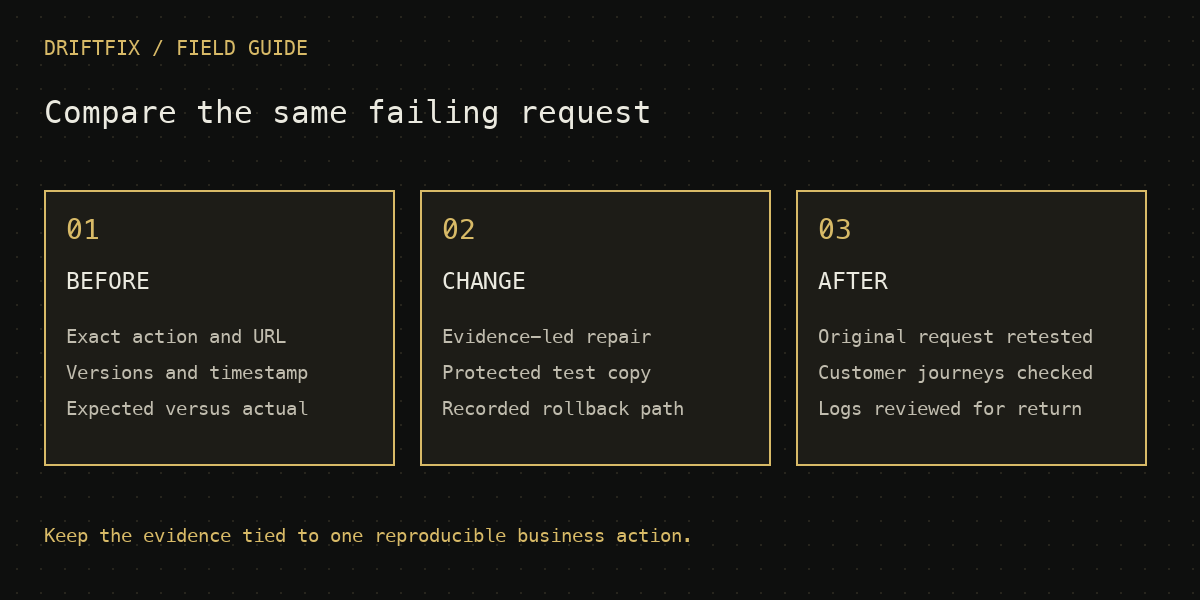
5. Isolate the cause on a protected staging copy
Reproduce the same action with matching versions and configuration on staging where practical. Prevent that copy from sending real customer notifications or using live payment integrations. Record the baseline result before changing a plugin, theme or runtime setting.
WordPress.com’s plugin-conflict guidance distinguishes a component failing by itself from two components failing only together. Test each suspected component alone and then together on staging. Its instructions about managed plugins apply to WordPress.com hosting; use the setup appropriate to your own host.
For example, record three outcomes for a custom checkout extension and another checkout plugin: extension alone, other plugin alone, both together. If only the combination fails, that supports an interaction hypothesis. If the original request no longer fails under any combination, confirm that the test copy still matches the conditions of the incident.
If dashboard access is unavailable, the host may help temporarily disable a specifically implicated component through the filesystem. Preserve the original files and record the exact change. Avoid broad live deactivation without assessing what happens to checkout, bookings, forms and other dependent functions.
6. Apply the smallest supported repair
Use the evidence to choose a repair: a compatible component release, corrected custom code, an appropriate runtime configuration or a vendor-supported workaround. Review the relevant changelog and requirements. Do not assume increasing resources will repair every WordPress critical error.
Agree how the change can be reversed and test it on the copy first. If an extension must remain disabled temporarily, explain which business functions are unavailable. A site that loads while its payment or booking system is disabled needs a clear operational decision.
Give a component author a concise reproduction: expected action, actual failure, relevant versions, sanitised error and the smallest combination that reproduces it. Arrange credentials privately if access is necessary. For custom code, keep the repair scoped so another developer can understand what changed and why.
7. Verify recovery outside the administrator session
Exit Recovery Mode after the repair and test the original failing request again. Check an ordinary logged-out visit as well as the relevant administrator action. This prevents a session-specific workaround from being mistaken for a complete repair.
Retest the customer journeys identified at the start: enquiry delivery, account access, downloads and checkout where applicable. Use authorised tests and reconcile their outcomes. If notifications are still missing, follow our WooCommerce email investigation instead of assuming the fatal error repair also fixed mail delivery.
Review logs for recurrence over subsequent activity and record the final versions, repair and verification results. Agree who watches the site and who responds if the symptom returns. Monitor actual behaviour rather than claiming that one successful test proves every integration works.
If the visible message says the database connection cannot be established, use our WordPress database connection error guide to check hosting, connection settings and recovery evidence for that different failure.
If the editor remains available but saving fails with an invalid JSON message, follow our WordPress invalid JSON response guide to inspect the failed request and separate authentication, routing and unexpected output problems.
If the site instead shows an update-maintenance message, use our WordPress maintenance-mode recovery guide to distinguish a stale flag from an incomplete update.
Need help investigating a WordPress critical error?
DriftFix provides WordPress troubleshooting for businesses and agency partners, working remotely from George, South Africa. We can help organise the evidence, isolate a failure and assess a scoped repair.
Tell us which request fails and what changed recently. Include the affected URL, approximate failure time and whether you can access the dashboard. Keep passwords, recovery links and customer details out of the initial enquiry.
Researched against the linked official documentation on 6 October 2026. Recovery options depend on the installed software, hosting access and the type of failure; this guide does not promise that every site can be repaired through the same procedure.